You don't need to understand CSS to fix CSS with Claude. You just need to give Claude the right information — and there's a script that does it for you in seconds.
This guide walks you through every click, from opening the browser tools for the first time to pasting the result into Claude. No experience required. If you can right-click, you can do this.
Already comfortable with browser DevTools? Skip this and go straight to the script.
What we're doing (the short version)
Your browser has built-in tools that let you see the technical data behind anything on a web page — which styles are applied, what colours are set, how elements are sized and spaced. You've never needed to look at this data because it's meant for developers.
But Claude can read it. And if Claude can read it, Claude can fix it.
We're going to:
- Click the thing that looks wrong
- Run a small script that collects all the technical data about it
- Paste that data to Claude
- Tell Claude what we want changed
That's it. You don't need to understand what the data means. Claude does.
One-time setup: allow pasting in Firefox
Firefox blocks pasting into its developer console by default. This is a safety feature — it stops people from being tricked into pasting malicious code from random websites. Since we know exactly what we're pasting, we can safely turn this off. You only do this once. (And yes, we take security seriously — this site runs Akeeba Admin Tools with its Web Application Firewall. The irony of disabling a security warning is not lost on us.)
- Type
about:configin the Firefox address bar and press Enter. - You'll see a warning page. Click Accept the Risk and Continue. (This page just lets you change Firefox settings — it's not dangerous.)
- In the search bar, type
devtools.selfxss.count - Double-click the value and change it from
1to100
Screenshot: about:config with devtools.selfxss.count set to 100
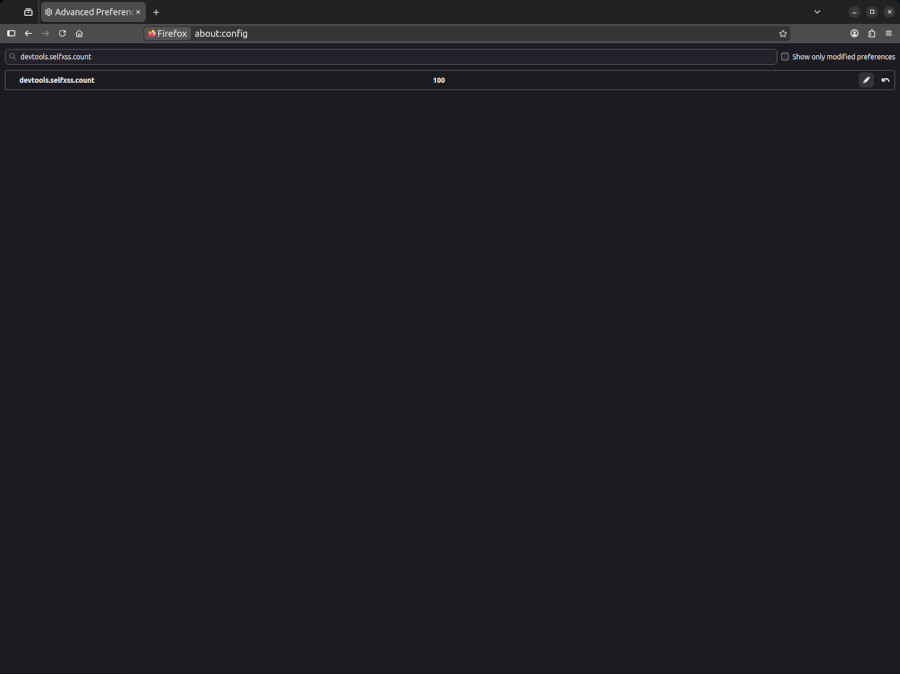
Done. You won't need to do this again.
Step 1: Find the thing that looks wrong
Go to the page on your site where something doesn't look right. Maybe a button is the wrong colour, text is too small, spacing is off — anything visual.
Right-click directly on the broken element and choose Inspect from the menu.
Screenshot: Right-click context menu
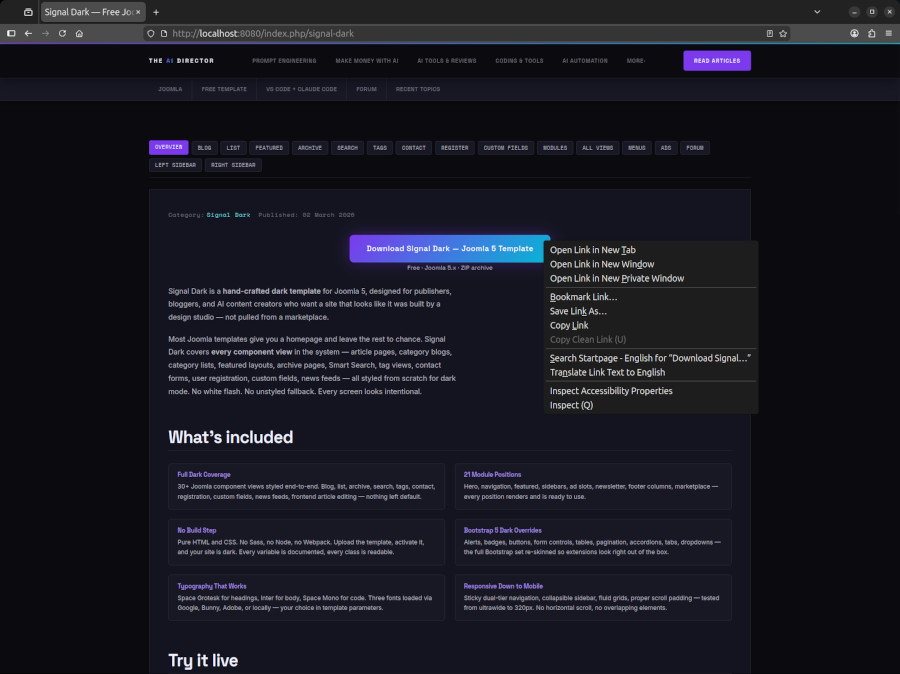
A panel will open at the bottom (or side) of your browser. This is the Inspector — it shows the code behind the page. Don't worry about understanding it.
Step 2: Select the exact element
Sometimes "Inspect" selects a nearby element instead of the exact one you wanted. To be precise:
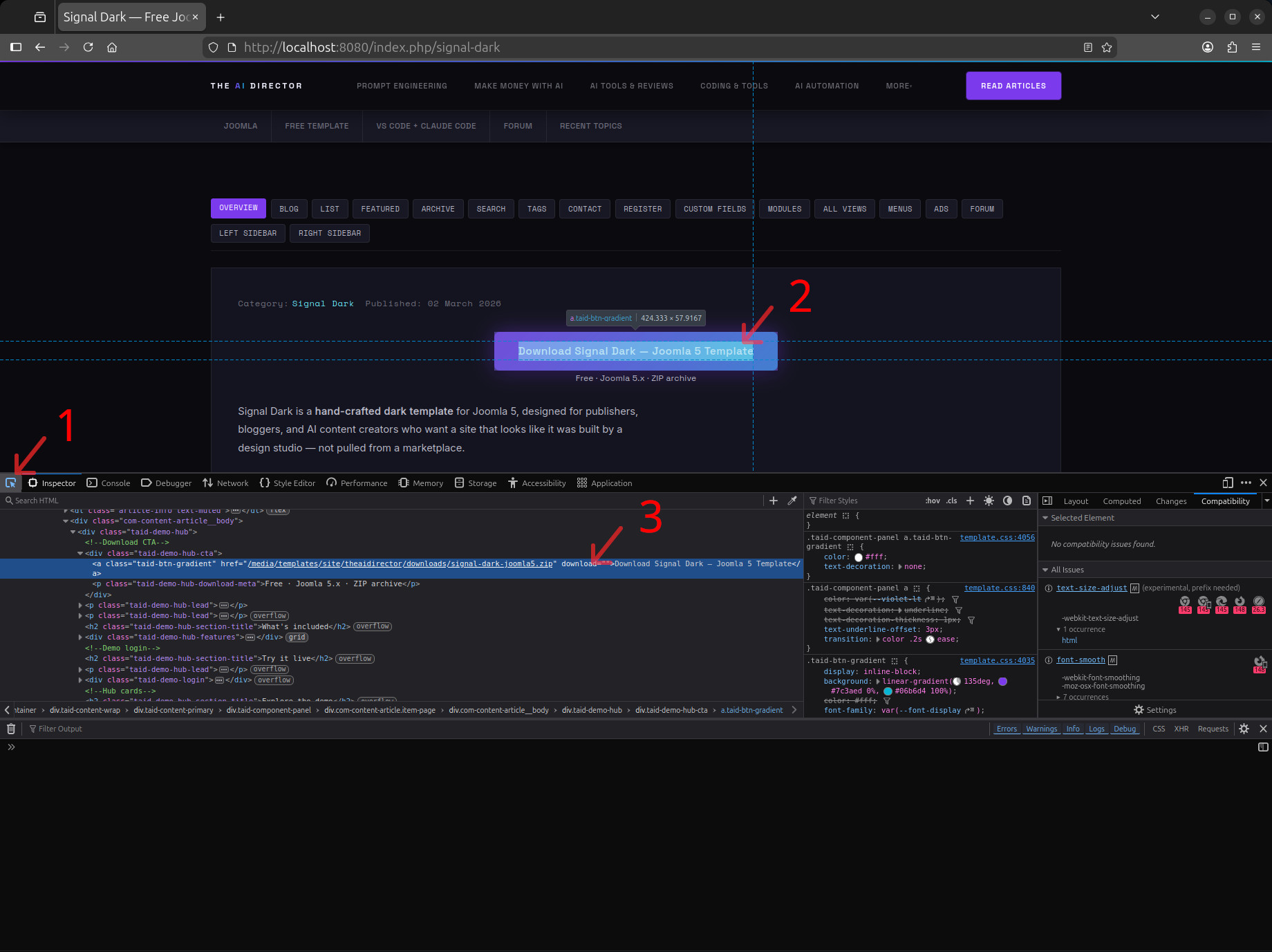
- Look at the top-left corner of the Inspector panel. There's a small icon that looks like a cursor over a square — this is the element picker. Click it.
- Now move your mouse over the page. You'll see elements highlight in blue as you hover.
- Click directly on the element that's wrong.
Screenshot: Inspect (Q) highlighted
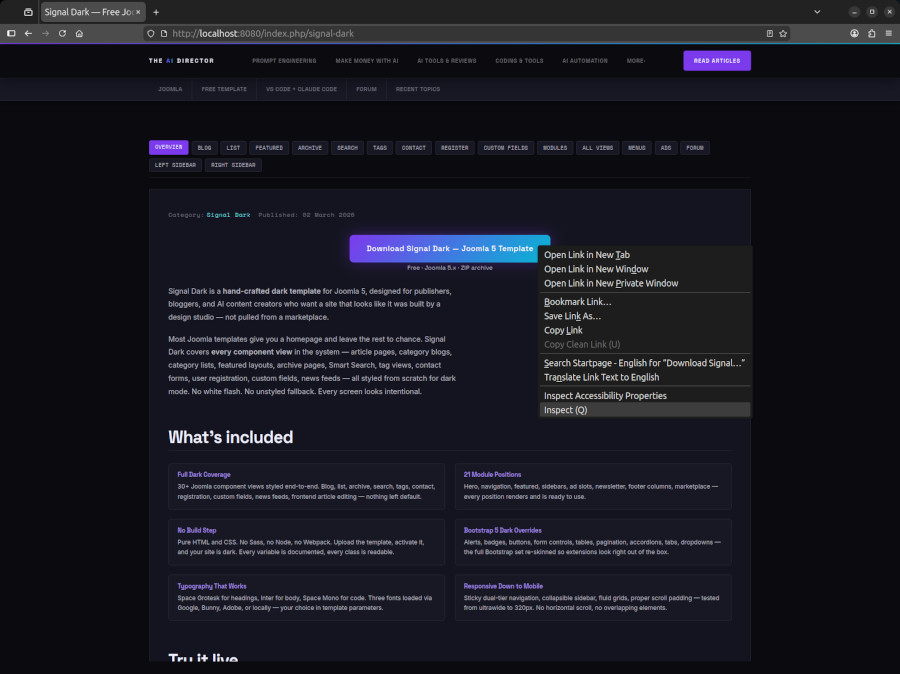
The Inspector now shows that element's code highlighted. You'll see something like <a href="/...">Some Text</a> or <div class="..."> — that's the element you selected.
Screenshot: DevTools open with element selected
Step 3: Open the Console and run the script
Now we need to switch to the Console — a different tab in the same panel.
You can either:
- Click the Console tab at the top of the Inspector panel, or
- Right-click the highlighted element in the Inspector and choose Use in Console
Screenshot: Right-click → Use in Console
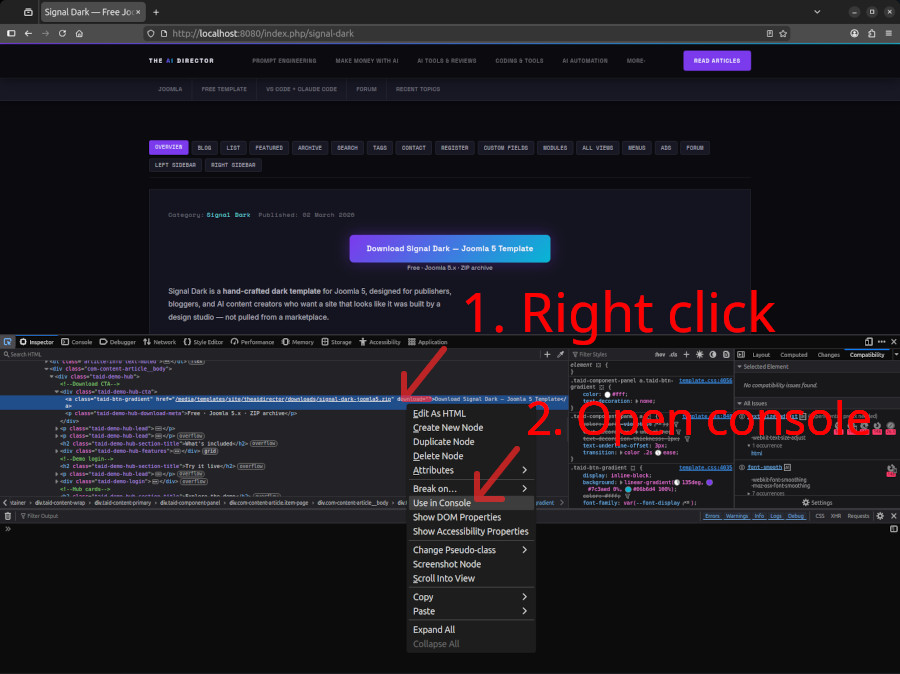
You'll see a text area where you can type. This is where the script goes.
Copy the entire script from the box below. Paste it into the Console. Press Enter.
function debug(el) {
  if (!el) { el = $0; }
  if (!el) { console.log('No element selected. Pick one in Inspector first.'); return; }

  const lines = [];

  const outer = el.outerHTML;
  lines.push('=== OUTER HTML ===');
  lines.push(outer.length > 3000 ? outer.slice(0, 3000) + '\n... (truncated)' : outer);

  lines.push('\n=== CSS SELECTOR ===');
  lines.push(cssPath(el));

  lines.push('\n=== XPATH ===');
  lines.push(xPath(el));

  lines.push('\n=== COMPUTED STYLES (key properties) ===');
  const comp = getComputedStyle(el);
  const props = [
    'display', 'position', 'float', 'clear',
    'width', 'height', 'min-width', 'max-width', 'min-height', 'max-height',
    'margin', 'margin-top', 'margin-right', 'margin-bottom', 'margin-left',
    'padding', 'padding-top', 'padding-right', 'padding-bottom', 'padding-left',
    'border', 'border-top', 'border-right', 'border-bottom', 'border-left',
    'border-color', 'border-width', 'border-style', 'border-radius',
    'background', 'background-color', 'background-image',
    'color', 'font-family', 'font-size', 'font-weight', 'line-height',
    'text-decoration', 'text-transform', 'letter-spacing',
    'overflow', 'z-index', 'opacity',
    'flex', 'flex-direction', 'flex-wrap', 'align-items', 'justify-content', 'gap',
    'grid-template-columns', 'grid-template-rows',
    'box-shadow', 'outline',
    'appearance', '-webkit-appearance',
  ];
  for (const p of props) {
    const v = comp.getPropertyValue(p);
    if (v && v !== '' && v !== 'none' && v !== 'normal' && v !== 'auto'
        && v !== '0px' && v !== 'rgba(0, 0, 0, 0)' && v !== 'start'
        && v !== 'visible' && v !== 'baseline' && v !== 'stretch') {
      lines.push('  ' + p + ': ' + v + ';');
    }
  }

  lines.push('\n=== MATCHED CSS RULES ===');
  try {
    const sheets = [...document.styleSheets];
    for (const sheet of sheets) {
      try {
        const rules = [...sheet.cssRules];
        for (const rule of rules) {
          if (rule.selectorText && el.matches(rule.selectorText)) {
            const src = sheet.href ? sheet.href.split('/').pop().split('?')[0] : 'inline';
            lines.push('/* ' + src + ' */');
            lines.push(rule.selectorText + ' {');
            for (let i = 0; i < rule.style.length; i++) {
              const prop = rule.style[i];
              const val = rule.style.getPropertyValue(prop);
              const pri = rule.style.getPropertyPriority(prop);
              lines.push('  ' + prop + ': ' + val + (pri ? ' !important' : '') + ';');
            }
            lines.push('}');
          }
        }
      } catch (e) {}
    }
  } catch (e) {
    lines.push('(Could not read stylesheets: ' + e.message + ')');
  }

  if (el.style.cssText) {
    lines.push('\n=== INLINE STYLES ===');
    lines.push(el.style.cssText);
  }

  lines.push('\n=== PARENT CHAIN ===');
  let node = el;
  let depth = 0;
  while (node && node !== document.documentElement && depth < 12) {
    const tag = node.tagName.toLowerCase();
    const id = node.id ? '#' + node.id : '';
    const cls = node.className && typeof node.className === 'string'
      ? '.' + node.className.trim().split(/\s+/).join('.') : '';
    lines.push('  '.repeat(depth) + tag + id + cls);
    node = node.parentElement;
    depth++;
  }

  const result = '\n\n\n\n\n' + lines.join('\n') + '\n\n\n\n\n# Next batch: ';
  copy(result);
  console.log('Copied ' + result.length + ' chars to clipboard.');
  return result;
}

function cssPath(el) {
  const parts = [];
  while (el && el.nodeType === 1) {
    let sel = el.tagName.toLowerCase();
    if (el.id) { parts.unshift(sel + '#' + el.id); break; }
    if (el.className && typeof el.className === 'string') {
      sel += '.' + el.className.trim().split(/\s+/).join('.');
    }
    const parent = el.parentElement;
    if (parent) {
      const siblings = [...parent.children].filter(c => c.tagName === el.tagName);
      if (siblings.length > 1) {
        sel += ':nth-child(' + ([...parent.children].indexOf(el) + 1) + ')';
      }
    }
    parts.unshift(sel);
    el = parent;
  }
  return parts.join(' > ');
}

function xPath(el) {
  const parts = [];
  while (el && el.nodeType === 1) {
    let idx = 1;
    for (let sib = el.previousElementSibling; sib; sib = sib.previousElementSibling) {
      if (sib.tagName === el.tagName) idx++;
    }
    parts.unshift(el.tagName.toLowerCase() + '[' + idx + ']');
    el = el.parentElement;
  }
  return '/' + parts.join('/');
}

debug($0);
Screenshot: Script pasted in Console
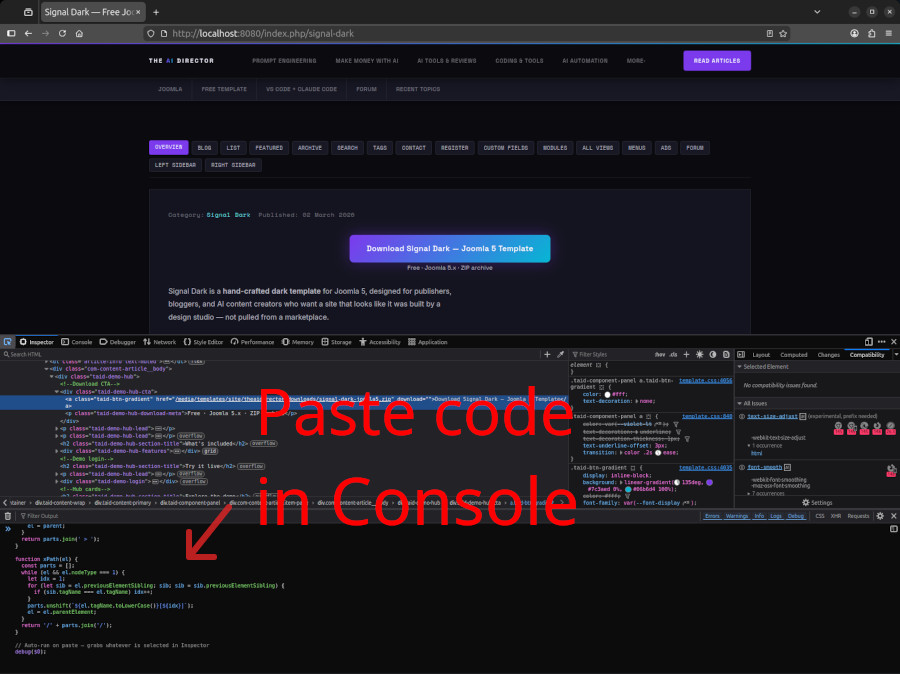
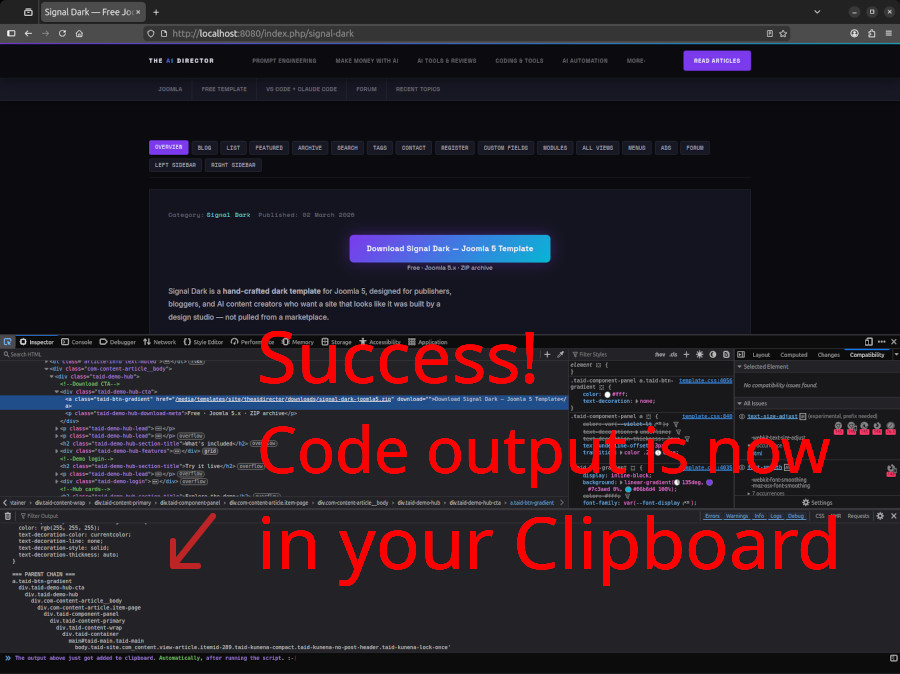
You'll see a message like Copied 1847 chars to clipboard. — that means it worked. All the technical data about that element is now on your clipboard.
Screenshot: Success — output copied to clipboard
Step 4: Paste it to Claude and say what you want
Open Claude — in VS Code, in the browser, wherever you use it. Press Ctrl+V (or Cmd+V on Mac). A block of technical-looking text will appear. That's the data Claude needs.
Now just tell Claude what you want in plain English:
- "Make this button violet instead of grey"
- "This heading is way too big on mobile"
- "The spacing between these items is wrong — there's no gap"
- "This text is invisible on the dark background"
Claude reads the technical data, understands exactly which CSS rules are causing the issue, and writes the fix. You don't need to know what any of it means.
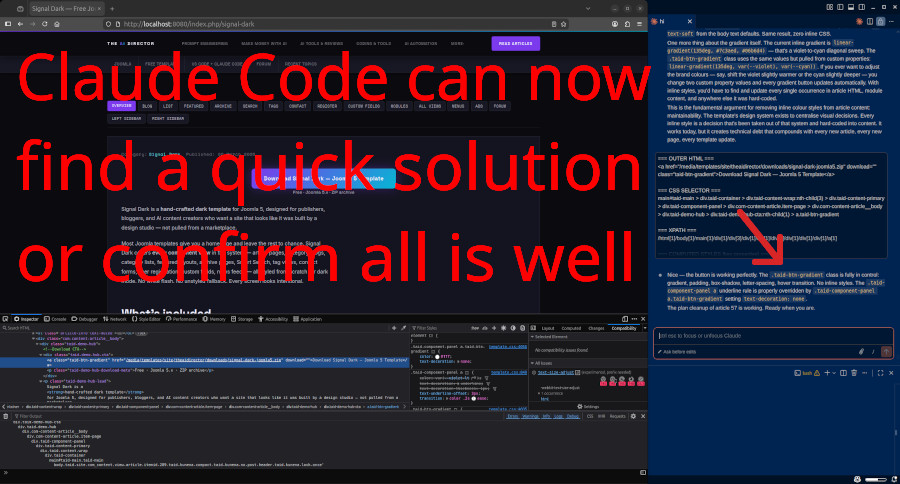
Screenshot: Debug output pasted into Claude Code
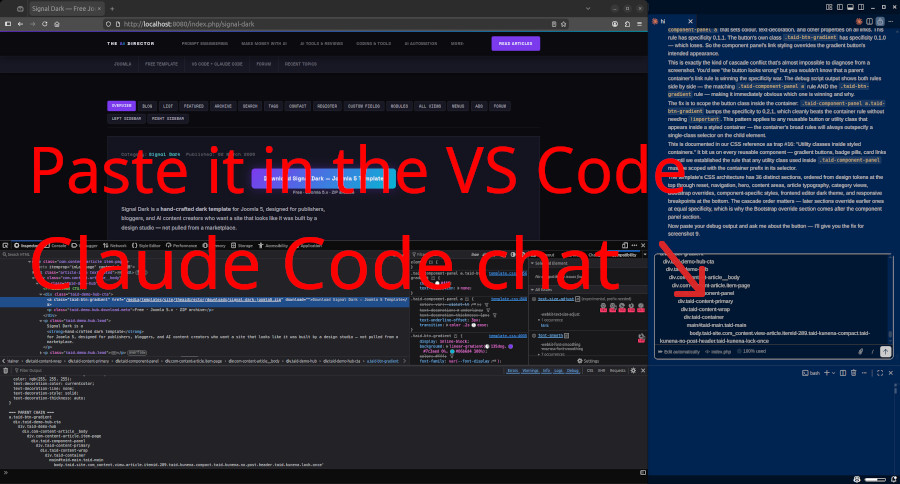
Screenshot: Claude responds with the fix
That's the whole process
- Right-click the broken thing → Inspect
- Pick the exact element with the element picker
- Console → paste script → Enter
- Ctrl+V to Claude → tell it what you want
Every time something looks wrong on your site, this is how you fix it. Click it, script it, paste it, describe what you want. Claude handles the rest.
The script works on any website, in any browser — Firefox, Chrome, or Edge. It's free. There's nothing to install.
Want the faster version? If you're comfortable with DevTools already, the power-user article shows how to bind the script to a keyboard shortcut — three keystrokes from broken to fixed.